please follow this guidelines for successful preparation of your media for our players.
When finishing your editing the most important task is to make a masterfile (editmaster)
Your sequence or program is made of multiple types and formats of imported media.
you finally want to export this to a single file at the highest quality possible.
Most of us choose Apple Prores 422HQ or even Proress 444.
It is a compressed format but thanks to the mild compression the quality is still very high without the burden of storing huge uncompressed files. Now finally exporting Quicktime Prores is made available to windows as well when editing with Premiere 2020 and up
If you need to export from another edit program on windows the Avid NXHD format is equal to Apple’s Prores.
The edit master file in Prores or NXHD is not ready to play on a regular mediaplayer.
the datarate of those codecs is very high and not compatible with mediaplayers.
For this you need to encode the masterfile another time in another format (with a different codec). You also can encode with this settings directly from your premiere sequence.
All our mediaplayers can play Mpeg2, Mpeg4 video files (Mp3 as well but that is audio only)
Mpeg 2 is used for as long time now and mainly used for SD video on DVD although it can encode HD material just as fine. Mpeg4 is now common to encode HD video because it’s more efficient: lower datarate for the same quality as Mpeg2 or higher quality for the same datarate as Mpeg2. important is to know that most of the mediaplayer can play a datarate up to 25MBps (megabyte per second) Proress HQ is typical 220MBps !
The media is encoded with a certain codec into a file and wrapped in a container`
Quicktime, AVI etc are not codecs but the are containers which can hold a variety on encoded streams. e.g. timecode, subtitletracks, different codecs and multiple audio channels etc.
computers can playback them most of the time but mediaplayers are more picky.
They only like Mpeg variants with strict channel layout.
To export your video with the right settings follow this guidelines
make sure the video is encoded in the same size and framerate as the editsequence.
if you timeline is full HD it’s 1920×1080 pixels with a framerate of 25 or 50 (in Europe)
Check the video tab in the Encoders settings. Changing framerate while exporting is very bad.
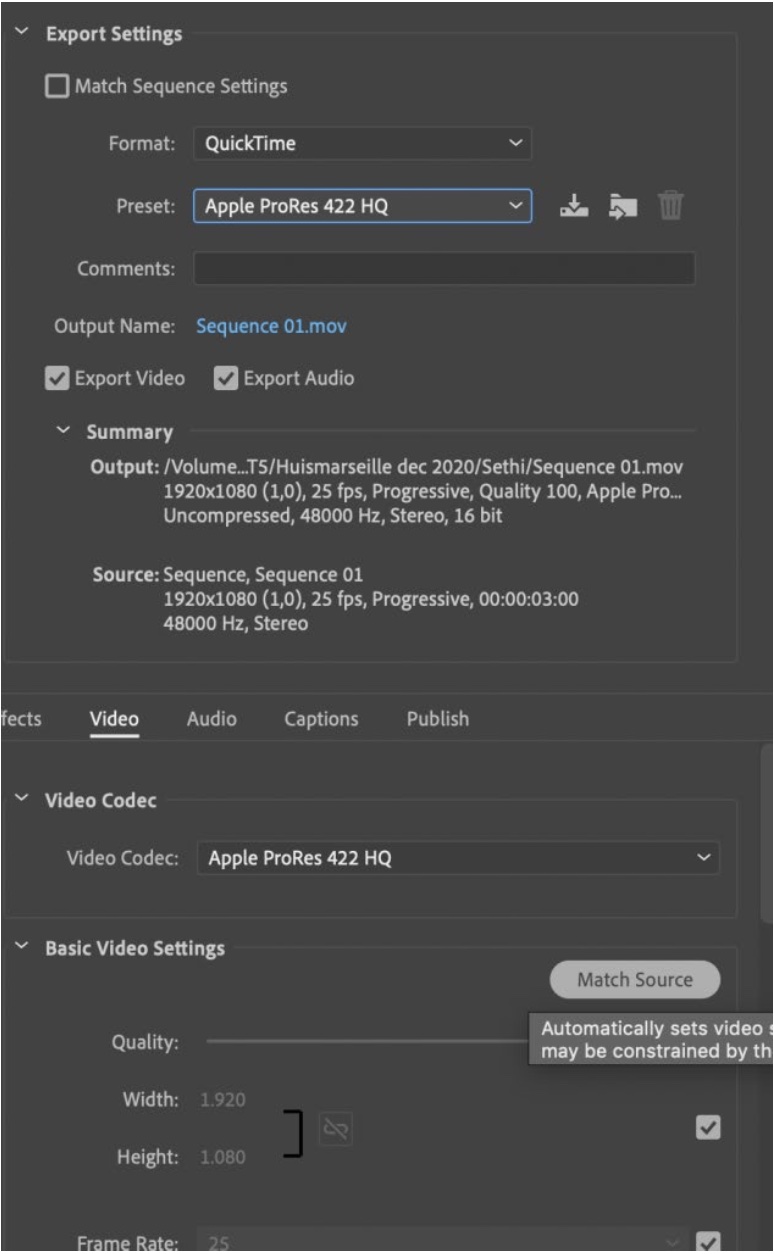
Example mastering from Premiere.
click on the window containing your sequence, Then select File-> EXPORT -> MEDIA
make sure you match your sequence settings and choose the container Quicktime with preset Apple ProRes 422 HQ. The audio will be rendered in uncompressed AIFF format.
The final output will be your editmaster . You need to store it carefully!
you can repeat the process and choose a mpeg codec instead of quicktime prores
but if you have a sequence with many effect and scaled shots it’s wise the process your single masterfile to encode into an mpeg file instead. That saves you rendering time. You can render and wait straight from Premiere but you also can add the export to the queue Adobe Media Encoder is opened . There you can duplicate the job and alter the export settings for the second export in mpeg.
The export codec for your HD video schould be H264 with only the container mp4
This is a bit confusing because you also can choose mp4 next to H264 but that’s not the same.
Make sure the resolution and the framerate are matching your video and scroll down to the video section. There you tab Video and inspect the settings.
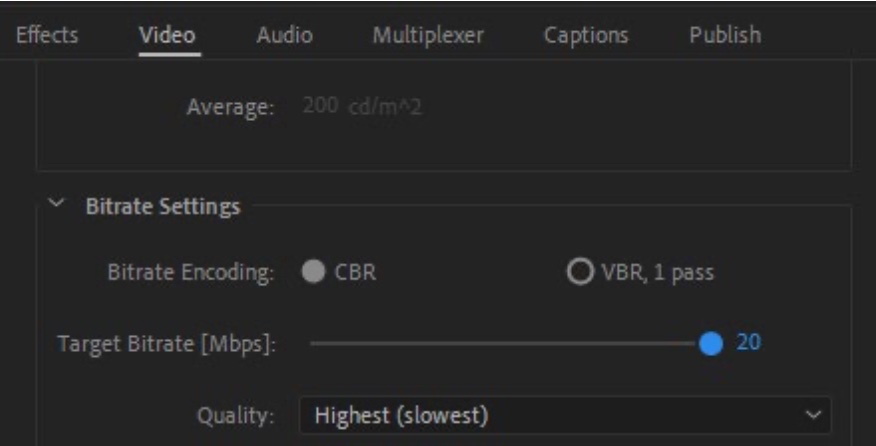
Best is CBR 25mb (25000kb) (constant bit rate)
VBR (variable bit rate) is only needed if you need to squeeze long movies on a small storage but can compromise the quality. Mostly it’s ok nowadays.
some USB sticks or internal USB slots in TV’s cannot playback high datarates so you need to reduce the bitrate to 20mb or even 15mb. below that you might see quality loss .
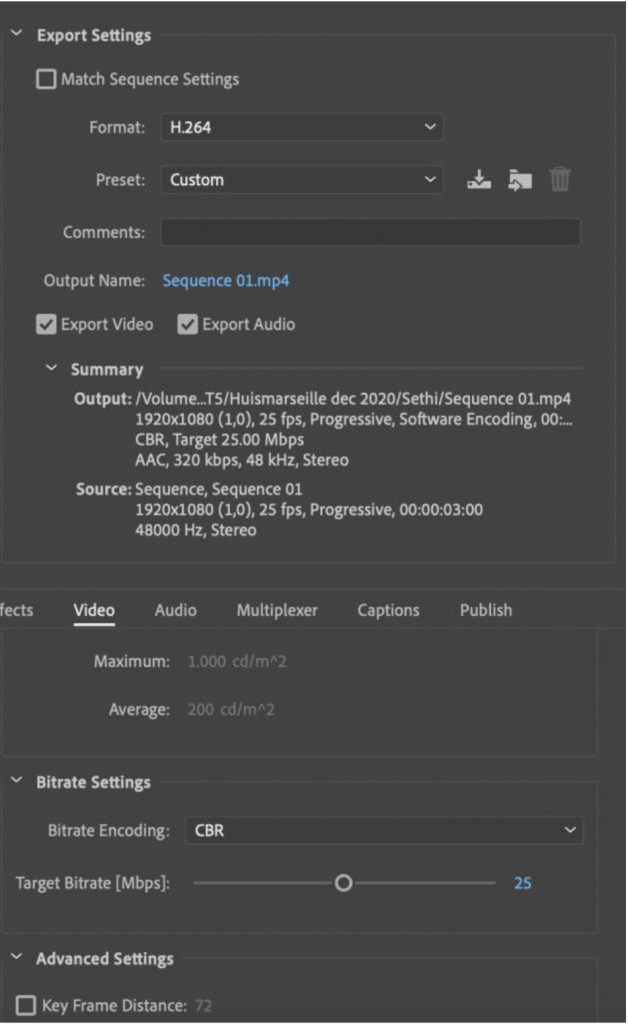
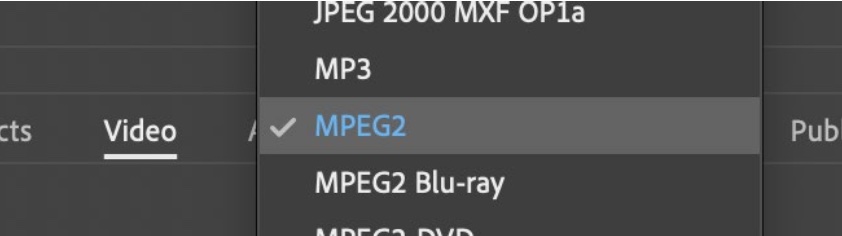
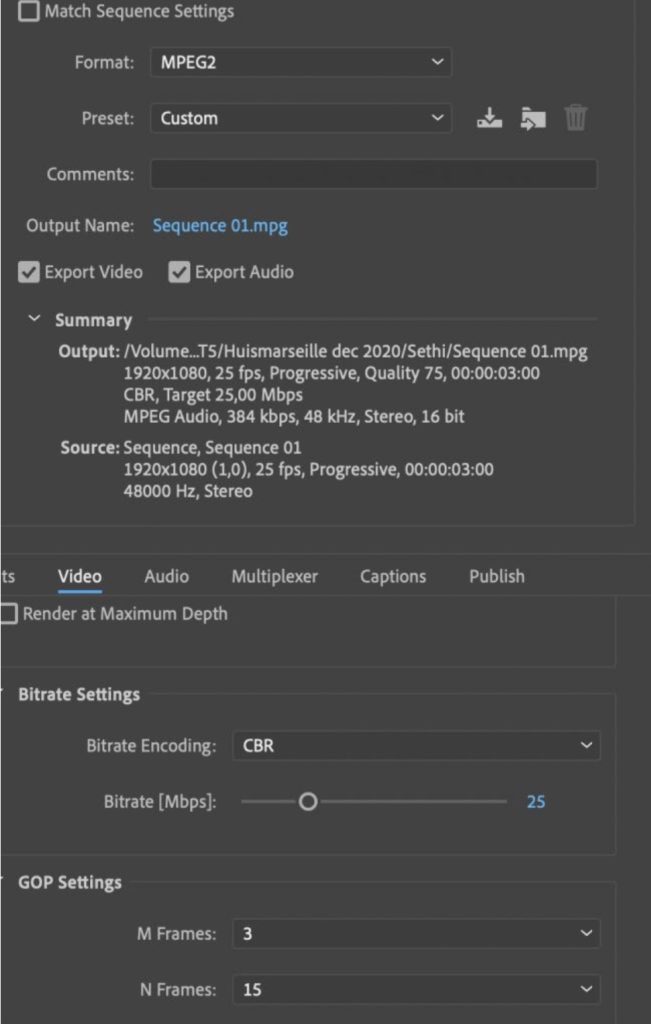
For video with dolby surround sound you need to choose the ‘older’ MPEG2 format with the MPEG or TS extension(container) MP4 is not supporting this feature. (see my other blog Video with surround sound )
For ‘4K’ or UHD (Ultra HD) 3840×2160 (HD resolution doubled horizontal and vertical)
we need to choose a different codec H265
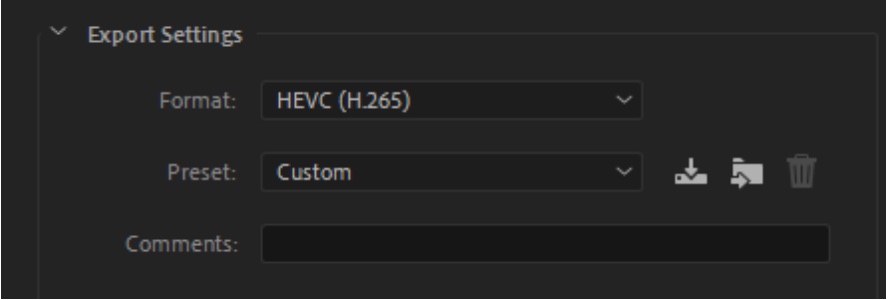
it will get the same extension .mp4 (container) as H264 but has the capacity to adapt to the new format. Ideally you need to encode it between 30-40Mbs (H265 is again more efficient)
but if your player cannot handle the high datarate you can lower it to 20MBps without dramatic changes.
Mind! UHD H265 is not supported by our normal WD or Med8er players and most TV screens
You need a capable player for that like a Brightsign HD serie 4 / XD serie 3/4 and a UHD display.
If using an SD card make sure it’s class 10 e.g. Sandisk Ultra
IvS 2020